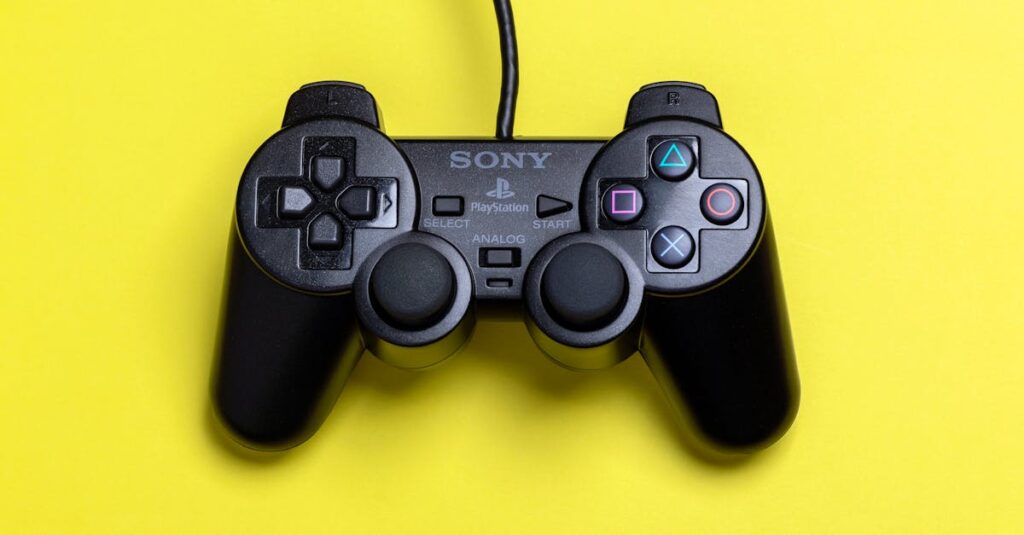
Roblox has taken the gaming world by storm, captivating millions with its endless creativity and fun. But let’s face it—sometimes clicking away on a keyboard feels like trying to juggle jelly while riding a unicycle. If you’ve ever wished for a more comfortable way to dive into those virtual worlds, you’re in luck!
Table of Contents
ToggleOverview of Roblox on PC
Roblox functions as an online platform where users create and explore games. Running on PC, it provides a variety of gaming experiences that attract millions of players. Users engage in social interactions, allowing them to play with friends or join new gaming communities.
Moving past keyboard controls, many players seek comfort during extended gaming sessions. Using a controller offers an ergonomic alternative that enhances gameplay. It simplifies actions such as navigating menus or executing complex moves, making gameplay more enjoyable.
Roblox supports various controllers, including Xbox and PlayStation models. Connecting a controller requires minimal setup; it typically involves plugging in the USB receiver or using Bluetooth for wireless models. Players receive immediate access to their favorite games once the controller is configured.
Settings within Roblox allow customization of controller preferences. Players can adjust sensitivity, button mapping, and other features to suit their gaming style. This flexibility leads to a more personalized experience, enhancing overall satisfaction.
In-game, control schemes translate well to a controller layout. Commands, such as jumping or sprinting, become intuitive, improving reaction times in critical gameplay moments. Exploring the vast worlds of Roblox becomes seamless when using a controller, facilitating movement across maps and interactions with other players.
With its social features and game diversity, Roblox on PC creates a dynamic environment. Combining this with controller support enhances the overall enjoyment, proving that flexibility in control options is essential for a satisfying gaming experience.
Requirements for Using a Controller
Using a controller for Roblox on PC enhances the gaming experience by providing comfort and ease of use. Before diving into gameplay, certain requirements must be met.
Compatible Controllers
Various controllers work with Roblox on PC. Xbox controllers, both wired and wireless, connect seamlessly and offer full compatibility. PlayStation DualShock and DualSense controllers also function well, although additional setup may be necessary. Other generic USB controllers can work, but compatibility varies. Checking manufacturer’s specifications ensures the best experience. Popular options enhance gameplay and provide essential comfort during extended sessions.
System Specifications
Minimum system requirements play a crucial role in ensuring smooth controller performance. At least 4 GB of RAM is recommended; this allows for better memory management during gameplay. A multi-core processor enhances multitasking and responsiveness while gaming. Windows 10 or later offers optimal support for both Roblox and numerous controllers. Ensuring a stable internet connection improves online gameplay as well. Meeting these specifications guarantees a fluid gaming experience, making control input more effective.
Setting Up Your Controller
Setting up a controller for Roblox on PC enhances the gaming experience. Follow the steps below to connect and configure your controller efficiently.
Wiring or Connecting via Bluetooth
For wired controllers, simply plug the USB cable into a USB port on the PC. The system recognizes most Xbox and PlayStation controllers automatically. Bluetooth connections require enabling the Bluetooth feature on your PC. Hold the pairing button on the controller until the light flashes, indicating it’s ready to pair. Then, navigate to the Bluetooth settings on your PC, locate the controller, and click to connect. Utilizing Bluetooth provides flexibility, allowing players to game comfortably without being tethered to their computers.
Configuring Settings in Windows
Before diving into Roblox, adjust the controller settings in Windows for optimal gameplay. Start by accessing the “Devices” section in Settings. Next, select “Bluetooth & other devices” to ensure your controller appears in the list. Click on it to customize configurations. Open the “Game Controllers” settings by searching “joy.cpl” in the Run dialog. From here, you can verify that the controller functions correctly and test button responsiveness. Fine-tuning these settings ensures a smooth gaming experience and personalizes the control layout based on individual preferences.
Configuring Roblox for Controller Use
Configuring Roblox for controller use enhances the gaming experience. Players can easily adjust settings for optimal performance.
Accessing Roblox Settings
Open Roblox and navigate to the in-game menu. Players find settings by clicking the gear icon. From there, they can access the controls menu. Adjustments made here affect gameplay directly, so tweaking settings to fit individual preferences enhances comfort. Most controllers work seamlessly, but verifying compatibility ensures the best connection.
Customizing Controls
Customization options allow players to remap controls based on their preferences. A player can assign specific functions to buttons, tailoring gameplay mechanics for easier maneuvering. Access the control customization under the settings menu and look for the keybinding options. Modifying sensitivity settings also helps create a responsive gaming experience. Proficiency increases as players adjust these settings to create personalized control schemes. This level of customization leads to improved performance in competitive scenarios.
Tips for a Better Gaming Experience
Improving the gaming experience on Roblox enhances enjoyment and engagement. Various strategies can aid in maximizing fun and efficiency during play.
Recommended Game Modes
Exploring user-created game modes expands gameplay opportunities. Adventure and role-playing games offer immersive experiences, while obstacle courses challenge skills. Racing games bring thrill and excitement, allowing players to compete against friends. Social games promote interaction, fostering a sense of community. These varied modes cater to different preferences, ensuring that players can find something enjoyable regardless of their tastes.
Overcoming Common Issues
Experiencing setbacks while gaming can be frustrating, yet solutions exist for common problems. Connection issues often arise when controllers aren’t recognized; reconnecting or updating drivers typically resolves this. If players encounter lag, optimizing graphics settings might improve performance. Furthermore, button mapping discrepancies can occur; customizing controls helps align gameplay with personal preferences. Keeping game software up-to-date also addresses bugs and compatibility issues, leading to a smoother experience.
Embracing a controller while playing Roblox on PC can transform the gaming experience into something more enjoyable and comfortable. With the right setup and customization, players can enhance their gameplay significantly.
Exploring the diverse worlds of Roblox becomes even more engaging when using a controller that feels intuitive and responsive. By fine-tuning settings and ensuring compatibility, players can dive into their favorite games with confidence.
Whether it’s racing through obstacle courses or socializing in virtual hangouts, a controller can make all the difference. With these tips and tricks, players are well-equipped to maximize their enjoyment and fully immerse themselves in the vibrant Roblox community.